

Parameter Tables in Power BI / Power Query
One of the most interesting and most unique scenarios is Parameter Tables in Power Query / Power BI. The way to make a dynamic Power Query solution is to make sure that it can be easily customizableand, at the same time, be able to work as more of a pattern rather than just a unique one off solution to a single file, table or whatever it is that your query works against. This is exactly where Parameters and Parameter Tables jump in. We’ve seen before how you can create Parameters using the Manage Parameters feature, but what if you want to have your own parameters coming from a Table from any other source?  The purpose of having Parameters this way is that it’s dynamic, on every refresh it’ll get the latest values, and it gives another end-user interaction layer, where people can input or change values of parameters completely outside of Power Query / Power BI perhaps on an Excel table, or perhaps on its own storage like a SQL Server database. In the end, it’s all about providing the user with the friendliest of experiences based on their specific requirements. In this blog post we’ll cover what Parameter Tables are in Power Query / Power BI and the types of Parameter Tables that you can use.
The purpose of having Parameters this way is that it’s dynamic, on every refresh it’ll get the latest values, and it gives another end-user interaction layer, where people can input or change values of parameters completely outside of Power Query / Power BI perhaps on an Excel table, or perhaps on its own storage like a SQL Server database. In the end, it’s all about providing the user with the friendliest of experiences based on their specific requirements. In this blog post we’ll cover what Parameter Tables are in Power Query / Power BI and the types of Parameter Tables that you can use.The Original Recipe: by Ken Puls
A few years ago, before the ‘Manage Parameters’ was even invented / created by the Power Query / Power BI team, there was only a way to create a pseudo Parameter actually coming from an Excel Table.


 See how they try to tackle different scenarios. The first one is quite straightforward for when you want to use a single value for a specific Parameter, but if you need more than one, for a case where you need to invoke a function against multiple parameters like in the Parameters as Table Headers case where you want to query the same tables from 2 servers / databases with different ip addresses, then the second option would be far easier than going with the Record-like table approach.
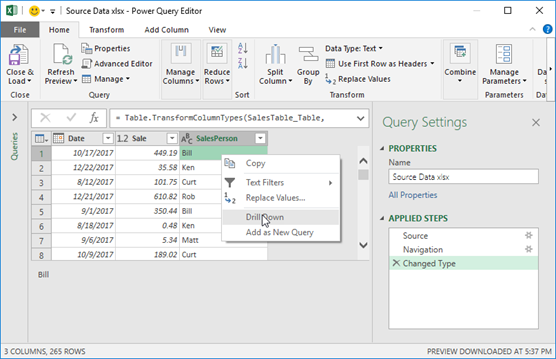
 This is actually a common step for the Record-like Parameter Table where you first need to reference the Parameter that you want to use as showcased by Ken in his blog post. The easiest way to reference a specific cell is to simply do a right click on the cell and select the option to Drill down or Add as New Query:
  That approach might be time consuming if you have multiple parameters to reference like the scenario that I mentioned before, where you have a table with all the databases that you want to connect to and the specific tables that you want to use from those databases. In that case, it’ll be much more efficient to simply use the Parameters as Table Headers approach and use a Custom Function that uses those 3 parameters so we can pass each row as the argument to the function using the Invoke Custom Function button which is the same experience to what we’ve addressed in our previous post about Custom Functions: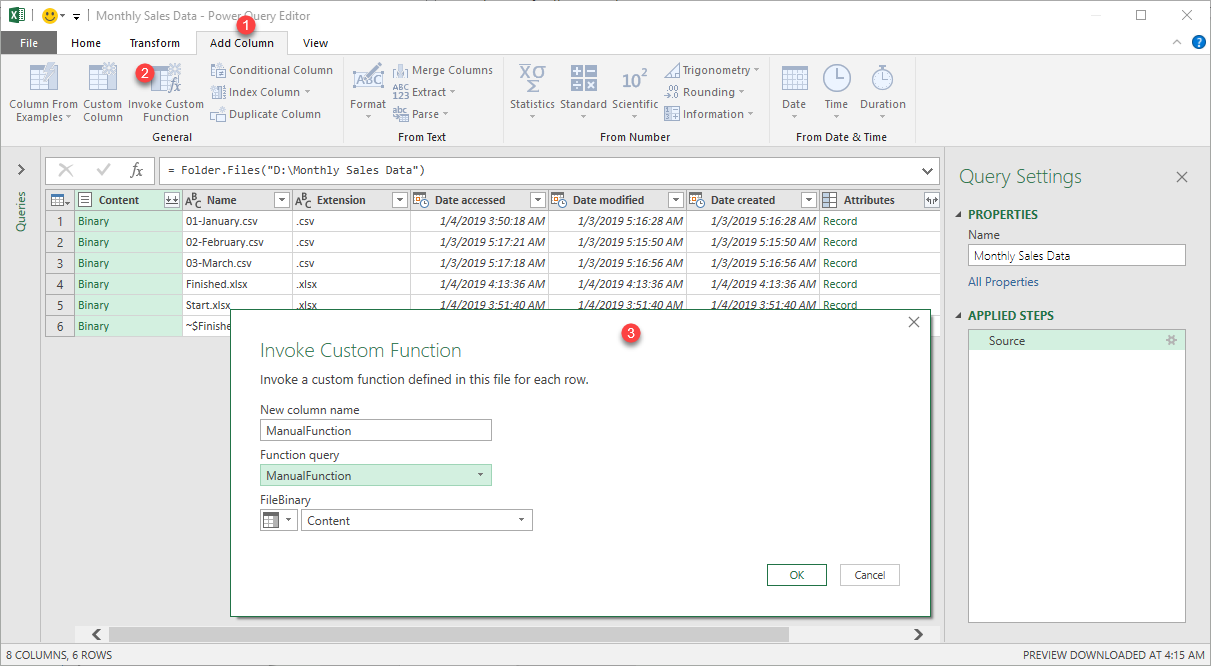
 Your Parameter table can be sourced from anywhere, but bear in mind that we also need to take in consideration the Privacy settings of each of your Data Sources as they might trigger something called the “Formula Firewall”, which I’ll cover in a later blog post. Note that we call these Parameter Tables, but these are pseudo Parameters as, by definition, Parameters inside Power Query / Power BI are defined within the Manage Parameters window and we also covered the difference between Arguments and Parameters, so the more technically appropriate term for these should be Arguments Table.
A few years ago, before the ‘Manage Parameters’ was even invented / created by the Power Query / Power BI team, there was only a way to create a pseudo Parameter actually coming from an Excel Table.
The first person to ever write about it was my friend and legend Ken Puls and you can read his blog post about it here.
Ken Puls wrote that post in 2014 as it’s still relevant to this day. It’s such a profound an impactful contribution to the Power Query ‘game’ that we ended up adding this to the ‘M is for Data Monkey’ book that we co-authored.
See, Ken is what you can call a Legend. He’s been an Excel MVP for many many years, even before I turned 18 years old and this guy has some wisdom on many areas from Excel, VBA, DAX, BI and more skills (check his Legend Card above).
From his wisdom, he was able to come up with an Excel formula that has completely changed the game for anyone using Power Query inside of Excel which is: =LEFT(CELL("filename",B6),FIND("[",CELL("filename",B6),1)-1) and that Excel formula will give you the current file path of your file which you can later use to create references to where exactly other files might be from your solution. Again, just go ahead and read the full blog post from Ken about it – it’s a really good read. In his blog post he talks about a specific way to create a Parameter table. In this blog post we’ll take a deep dive into how you can create Parameter tables and take your Parameter skills to a whole new level.Possible Layouts for a parameter table
The first topic that we need to tackle is, how does a Parameter table look like? They have 2 distinct layouts:- Record-like Table – this is the one that Ken used in his example and here’s a quick example of one:
- Parameters as Table Headers – instead of relying on just one value for a parameter, we can have multiple values that we can use for a single output. Here’s an example of how you could use that one:
See how they try to tackle different scenarios. The first one is quite straightforward for when you want to use a single value for a specific Parameter, but if you need more than one, for a case where you need to invoke a function against multiple parameters like in the Parameters as Table Headers case where you want to query the same tables from 2 servers / databases with different ip addresses, then the second option would be far easier than going with the Record-like table approach.Referencing Values from a Parameter Table
In his blog post, Ken provided an easy to use custom function and explained how to use it so you can extract the values from a Parameter table sourced from an Excel workbook. Since we want to go beyond that, and give you the concepts behind it so you can create your own, I’m going to reference a full blown blog post that I created a few months ago about how to Navigate through rows, columns and cells inside of Power Query / Power BI. Click in the image below to go to that blog post:This is actually a common step for the Record-like Parameter Table where you first need to reference the Parameter that you want to use as showcased by Ken in his blog post. The easiest way to reference a specific cell is to simply do a right click on the cell and select the option to Drill down or Add as New Query: That approach might be time consuming if you have multiple parameters to reference like the scenario that I mentioned before, where you have a table with all the databases that you want to connect to and the specific tables that you want to use from those databases. In that case, it’ll be much more efficient to simply use the Parameters as Table Headers approach and use a Custom Function that uses those 3 parameters so we can pass each row as the argument to the function using the Invoke Custom Function button which is the same experience to what we’ve addressed in our previous post about Custom Functions: (click on the image above to check the full blog post on Custom Functions)
Things to be aware of
Your Parameter table can be sourced from anywhere, but bear in mind that we also need to take in consideration the Privacy settings of each of your Data Sources as they might trigger something called the “Formula Firewall”, which I’ll cover in a later blog post. Note that we call these Parameter Tables, but these are pseudo Parameters as, by definition, Parameters inside Power Query / Power BI are defined within the Manage Parameters window and we also covered the difference between Arguments and Parameters, so the more technically appropriate term for these should be Arguments Table.

Comments