

Make your Dataflow Gen2 development 10x Faster
Let’s talk about one of the biggest silent killers of Dataflow Gen2 productivity:
Developing against live data.
It sounds “correct”… but it’s also the reason your Dataflow takes 10x longer to build than it should.
And yes — it makes you waste time for absolutely no reason, while also hammering your source system during every preview.
Scenario
You’re building a Dataflow Gen2 that ingests Sales Orders from a data source.
Maybe it’s your company’s ERP system, maybe it’s an Azure SQL database, maybe it’s Snowflake or maybe its just an internal REST API that its always really slow.
It doesn’t matter.
The point is: the time that it takes to get the data is far too long, and your transformations aren’t trivial.
You need to:
- Filter only valid sales orders
- Normalize customer IDs
- Expand product details
- Add calculated columns
- Create clean output tables for downstream models
So far so good.
This is exactly what Dataflow Gen2 is supposed to do.
The Issue with using Live Data that is slow
Here’s what happens when you build your Dataflow Gen2 against the real source that is known to be slow:
- every step you add triggers query evaluation
- previews take longer and longer
- small changes become painful
Even worse…live sources are unpredictable. One day the preview takes 15 seconds. The next day it takes 3 minutes because:
- the SQL server is busy
- the gateway is slow
- the network is congested
- the query plan changed
- someone is running ETL jobs in the background
So your development loop becomes:
make a change → wait → stare at spinner → forget what you were doing → repeat
This is not engineering.
This is suffering.
How Mock Data Can Be Generated
Instead of pulling live data while developing, you can generate a small dataset that mimics your schema.
This gives you fast previews, predictable results, and an actually usable development experience.
Step 1 — Create a parameter
Create a parameter called:
UseMockData
Set the allowed values:
truefalse
Default it to:
true
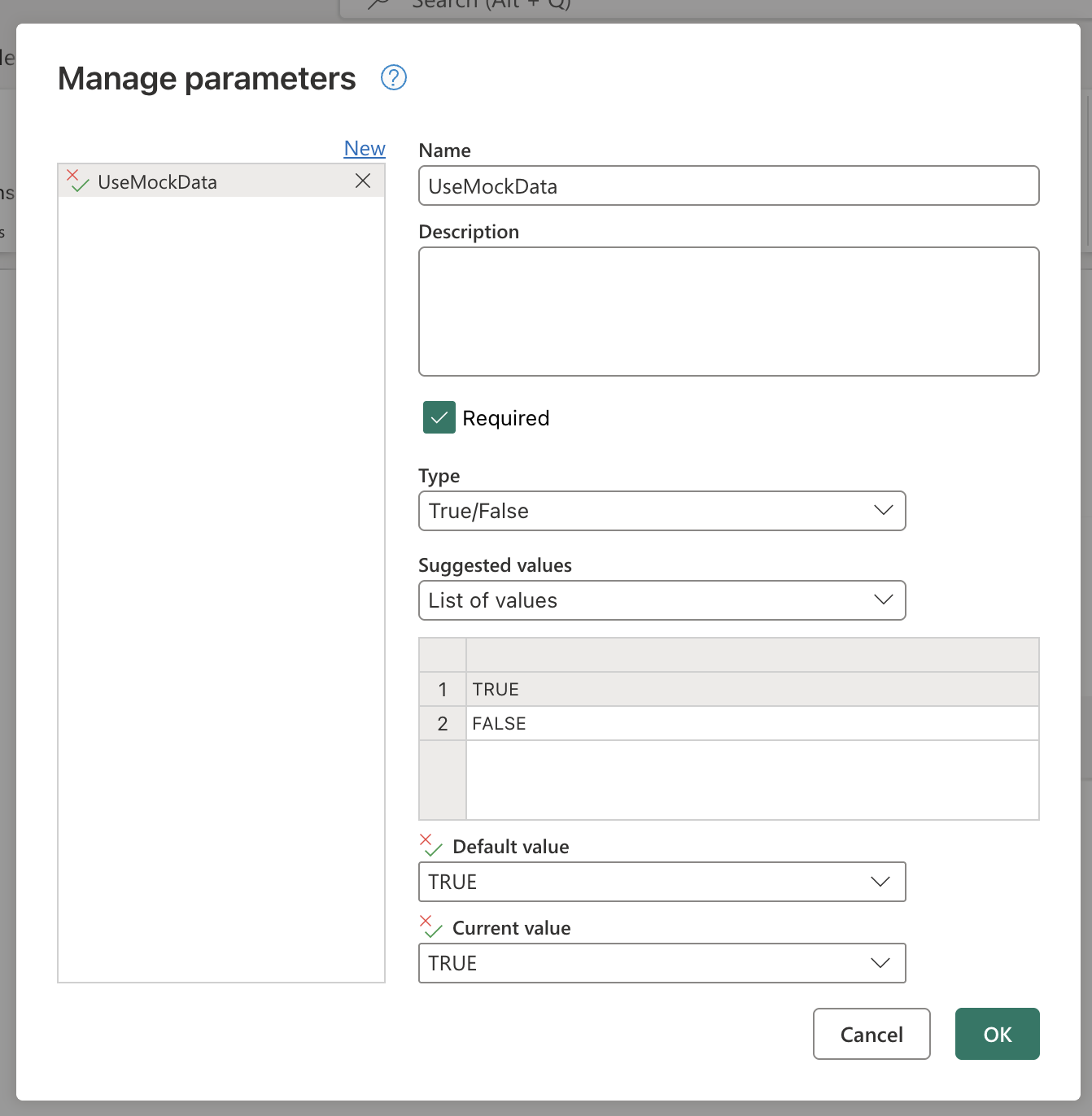
So when you open the Dataflow to edit, it runs fast.
Step 2 — Build a mock dataset (you have a few ways to do it)
At this point, you need a query that represents your mock version of the dataset.
In other words, you want something like Mock_SalesOrders that looks like production (same columns and types), but contains only a handful of rows so it loads instantly.
There are a few ways to build this query, depending on what workflow you prefer.
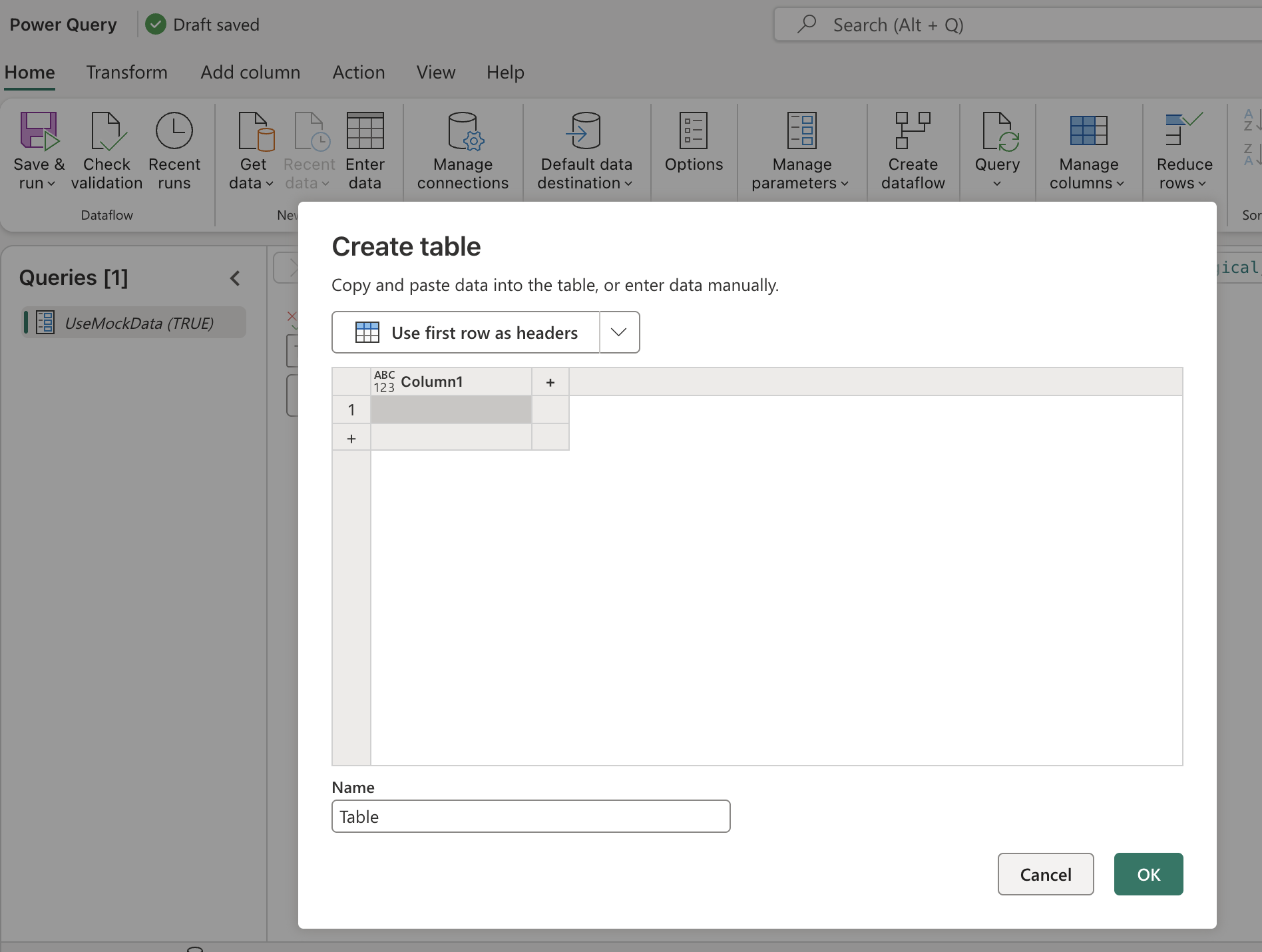
Option 1 — Use Enter Data (fastest)
If you already have sample rows from production, the simplest approach is to use Enter Data and paste a few records directly into the Dataflow.
This is the quickest way to get a working mock dataset, and in many cases it’s all you need.!
Option 2 — Build the table using pure M (most portable)
If you want something clean, reproducible, and easy to move across environments, you can define the mock dataset entirely in M code.
Example:
let
    MockSalesOrders =
        #table(
            type table [
                OrderID = Int64.Type,
                CustomerID = text,
                OrderDate = datetime,
                ProductID = text,
                Quantity = Int64.Type,
                UnitPrice = number
            ],
            {
                {1001, "CUST-001", #datetime(2025, 1, 1, 10, 0, 0), "PROD-A", 2, 19.99},
                {1002, "CUST-002", #datetime(2025, 1, 2, 14, 30, 0), "PROD-B", 1, 199.00},
                {1003, "CUST-003", #datetime(2025, 1, 3, 9, 15, 0), "PROD-C", 5, 9.50},
                {1004, "CUST-001", #datetime(2025, 1, 5, 11, 45, 0), "PROD-A", 1, 19.99}
            }
        )
in
    MockSalesOrders
This creates a small in-memory table that behaves like production:
- same schema
- same data types
- same general structure
But it loads instantly.
Option 3 — Use a CSV/TXT file stored somewhere fast (best for teams)
If you want something closer to a “real dev dataset”, store a sample extract as a CSV or TXT file.
Put it somewhere secure and reliable (OneLake, SharePoint, Blob Storage, etc.) and connect the Dataflow to that file.
This gives you mock data that:
- is easy to share across a team
- can be updated without touching the Dataflow logic
- behaves more like a real source system
This is usually the best option when multiple developers are building the same Dataflow.
No matter which option you choose, the goal is the same: create a lightweight dataset that matches production schema, without depending on production performance.
Step 3 — Create the real query
Create another query where you connect to your actual live data source and call it:
Real_SalesOrders
Example for Azure SQL:
let
    Source = Sql.Database("myserver.database.windows.net", "SalesDB"),
    SalesOrders = Source{[Schema="dbo", Item="SalesOrders"]}[Data]
in
    SalesOrders
This is your real source.
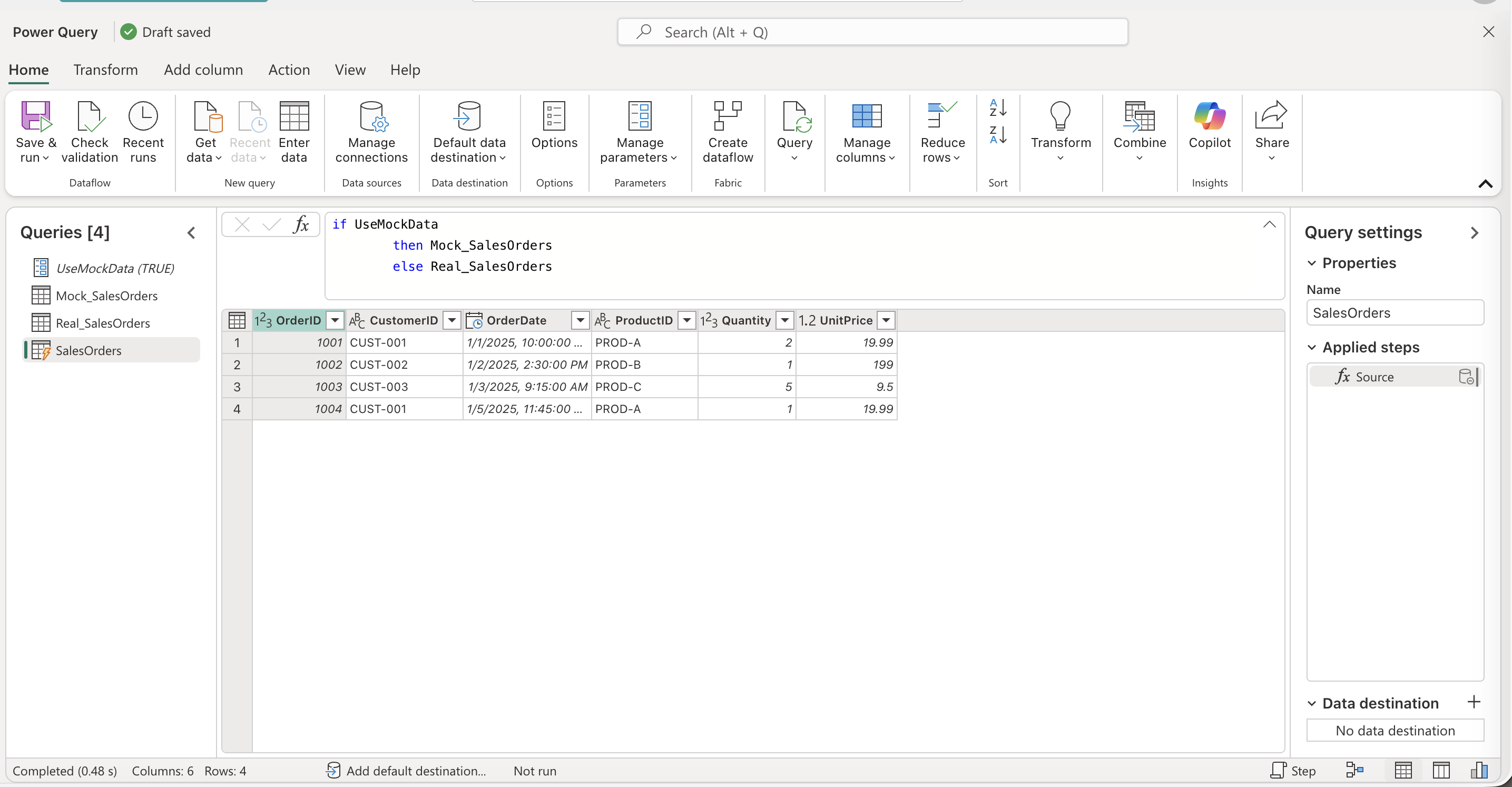
Step 4 — Switch between real and mock using the parameter
Now create the actual working query called:
SalesOrders
let
    Source =
        if UseMockData
        then Mock_SalesOrders
        else Real_SalesOrders
in
    Source
That’s it.
From this point forward, all transformations happen on top of SalesOrders.
So your logic stays identical. Only the source changes.
How This Impacts Development Time
This is where things get stupidly better. When you’re developing against mock data:
- previews load instantly (check the load time in the previous screenshot of 0.48 seconds)
- transformations apply instantly
- errors show instantly
- debugging becomes predictable
Instead of waiting minutes per step, you get a workflow that feels like:
edit → preview → tweak → preview → done
Which is how Power Query should feel.
Typical impact
If your live source takes ~2 minutes to preview and you make 40 changes…
That’s 80 minutes of waiting.
Not working. Waiting.
Mock data eliminates that.
Impact on Publishing Time
This is where mock data becomes way more powerful than people realize.
Because in Dataflow Gen2, saving/publishing isn’t just saving a file.
When you hit Save, Dataflow Gen2 runs validations behind the scenes.
And those validations typically require evaluating your queries against the configured source.
So if your dataflow is pointing at a live SQL database, API, or gateway-backed source, you often end up with:
- slow save times
- validation delays
- random failures depending on source availability
- publishing stuck because the source is slow or unreachable
And the worst part is:
- You’re not even refreshing the dataflow yet.
- You’re just trying to save your work.
Now compare that to using mock data.
If your UseMockData parameter is set to true, then the Dataflow is validating against a tiny in-memory dataset.
Which means:
- save is fast
- validation is fast
- publishing is predictable
- you don’t need the live system online just to publish changes
So your workflow becomes:
Develop with mock data → Save instantly → Publish cleanly → Deploy confidently
Then, when it’s time to run the real refresh, you invoke the dataflow with:
UseMockData = false
At that point, the Dataflow runs against the real source during refresh, which is when you actually want to pay the cost of hitting the live system.
This is the key distinction:
Mock data makes publishing fast.
Live data is only used when refresh actually runs.
And that’s exactly how it should be.
Note: this also assumes that you trust your live source and that your MockUp dataset has high-fidelity to what you’ll get from the source.
Impact on Refresh Time When Invoking Parameters
This is the part where it all comes together. Because parameters aren’t only a development trick. They’re a deployment and automation tool.
Once your Dataflow is published, you can invoke it with parameter values depending on the scenario by using Public Parameters.
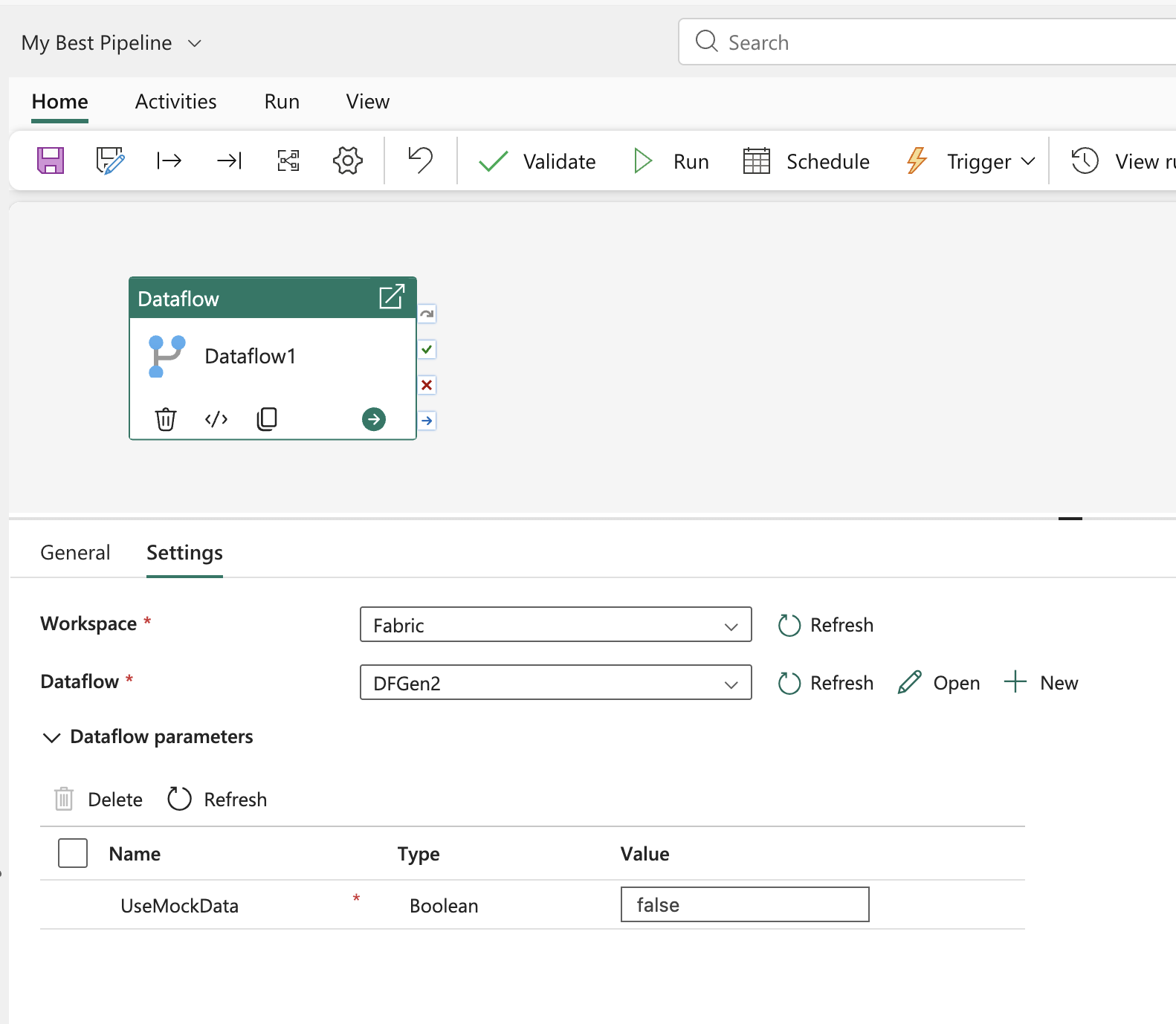
Example scenarios
CI/CD validation run
UseMockData = true- refresh completes quickly
- transformation logic is validated
- output schema is confirmed
Production refresh run
UseMockData = false- refresh hits the real source
- full dataset loads
- downstream models get real data
This gives you a clean separation:
- mock for development + validation
- live for production execution
Why this matters
Because the fastest refresh is the refresh you don’t run.
If you can validate logic with mock data, you avoid running expensive refreshes repeatedly just to test a minor transformation change.
That saves:
- time
- retries
- capacity usage
- and everyone’s sanity
Summary
Mock data + parameters is one of the highest ROI patterns you can use in Dataflow Gen2.
It gives you:
✅ faster development
✅ easier debugging
✅ faster publishing
✅ safer deployments
✅ better CI/CD automation
✅ less dependency on slow or unstable sources
And the best part?
It’s literally a boolean parameter and a small mock table.
Once you try it, you won’t go back.
There is another route that you can take which is using Preview Only Steps, but the best ROI for such scenario is when you work against a data source that supports query folding and the step that you want to make as a preview only can be folded back to the source. Definitely give it a try if you have a chance!


Comments